How to crop out a sub-image from the center of an image in MATLAB
MATLAB stores image data as matrices. The first cell is (1,1) and extends up to the size of the image. To crop out a sub-image from the center of an image we only need to do so simple math. To make it easy to understand I’ve added images.
This task in the strictest sense can only be done on matrices with odd dimensions. Having even dimensions imply that the image is not at the exact center.
To understand it see the following illustration:
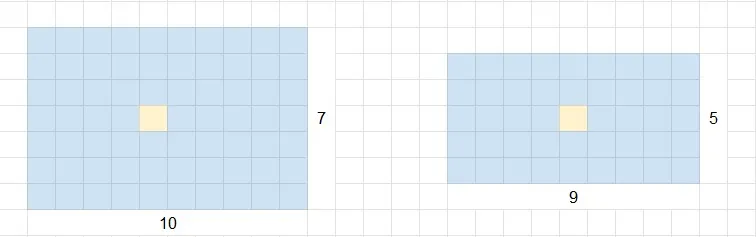
Imagine the squares to be the image matrices. The first one has even no. of columns while the second one has strictly odd no. of rows and column. Now, count the square or look at the beige coloured square in the center. In the first image, it is not technically at the center, it is shifted to the left. While the second matrix has a matrix value that corresponds to the exact center of the image.
Now to crop out a sub-image exactly from the center of an image we need to do the following :
Assume the image to be of size (7,9)
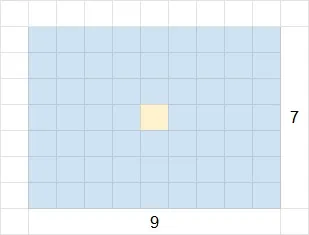
% Read the original image
img = imread('image.jpg');

% Get the number of rows and columns of the img matrix
[r,c] = size(img);
This gives r = 7 and c=9
% To find the central element
r_center = ceil(r/2);
c_center = ceil(c/2);
r/2 = 3.5 and using ‘ceil’ rounds it off to the next higher integer. r_center = 4c/2 = 4.5 and similarly c_center = 5
It should be clear from Image 2 that we correctly found out the location of the beige coloured central element.
Next, we need to find the coordinates of the sub-image we need to extract from the center. Imagine the image to be a (3,3) matrix as shown:
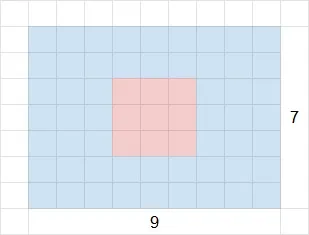
Then we have to find the upper left-most element of the sub-image.
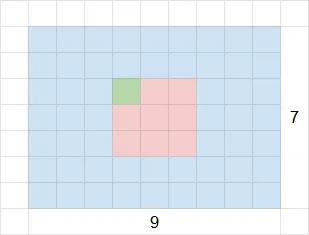
sub_im = 3  % dimension of the subimage
r_start = r_center - floor(sub_im/2);
c_start = c_center - floor(sub_im/2);
r_start = r_center - floor(3/2) = 4 - floor(1.5) = 4 - 1 = 3 ‘floor’ rounds it off to the left.
c_start = c_center - floor(3/2) = 5 - 1 = 4
So (3,4) is the location of the green coloured element.
Similarly to get the bottom right-most element we need to use the following:
r_end = r_start + sub_im - 1;
c_end = c_start + sub_im - 1;
We get the element to be at (5,6). Now that we have found out the corners we can simply crop it out using the following function.
sub_img = img(r_start:r_end,c_start:c_end);This gives us the central sub-image or elements in red.
Comments