🛡️ Forget passwords! Start using a Password Manager instead, in 2020
This post is for you if you answer ‘yes’ to any of the following:
- I reuse passwords on different websites
- I keep passwords in my memory
- I often forget my passwords
- I have hundreds of accounts online and they all have the same password
- I note down my passwords in a diary
I too used to reuse passwords online😅. I just had 3 passwords and I used any one randomly on websites. So I just had to remember these 3 passwords and if at all I don’t remember which one to use where most websites allow trying out different passwords before your account gets locked. So at least by the third attempt, I was sure of logging in.
Reusing passwords on different websites is a big security lapse. If hackers gain access to any one of your online accounts, then they literally have access to all your other accounts and data.
Then a couple of years back, realizing my mistake, I started to use more than 3 passwords and had them all saved up on Chrome. So in short, I asked google to safe-keep my passwords for me😅? Passwords stored in Chrome and Google servers are all encrypted and can’t be viewed by anyone unless they have the key for decryption and this key is based on your Google password. So your passwords are safe. Almost. The problem comes in when you have multiple devices and have signed in to your account from different places. In that case, if one device gets compromised all your data is at risk.
Apart from that just consider the following scenario:
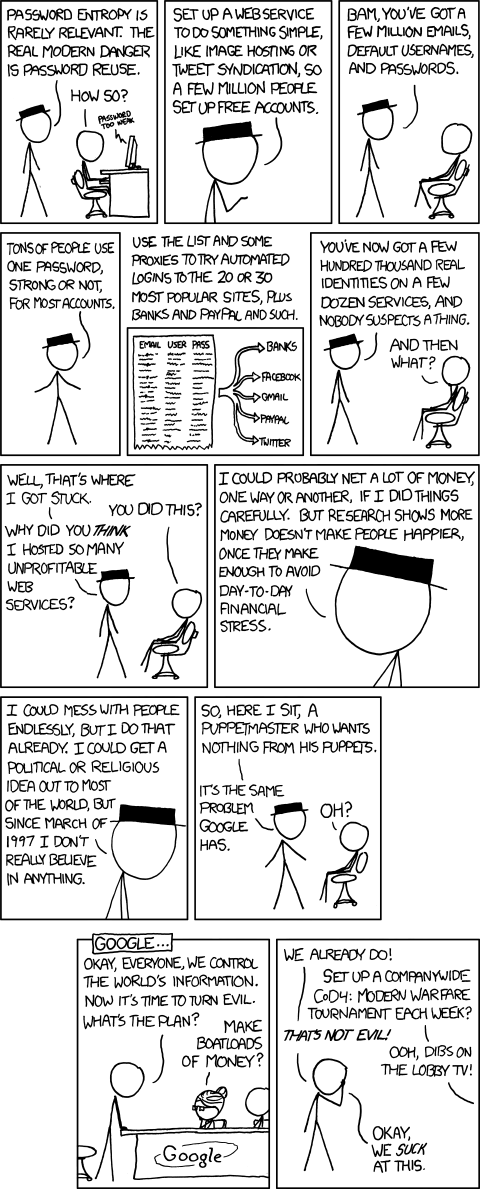
Source: XKCD
Anybody could be doing this with your online accounts. Now here’s a tool that anyone can use on your computer to gain access to all passwords stored in browsers. http://www.nirsoft.net/utils/web_browser_password.html Plus there are other ways of getting them like keylogging.
So 2 years ago I started using a password manager for storing all my passwords. I decided to go with LastPass after trying all the other online password managers. LastPass is the best out there!
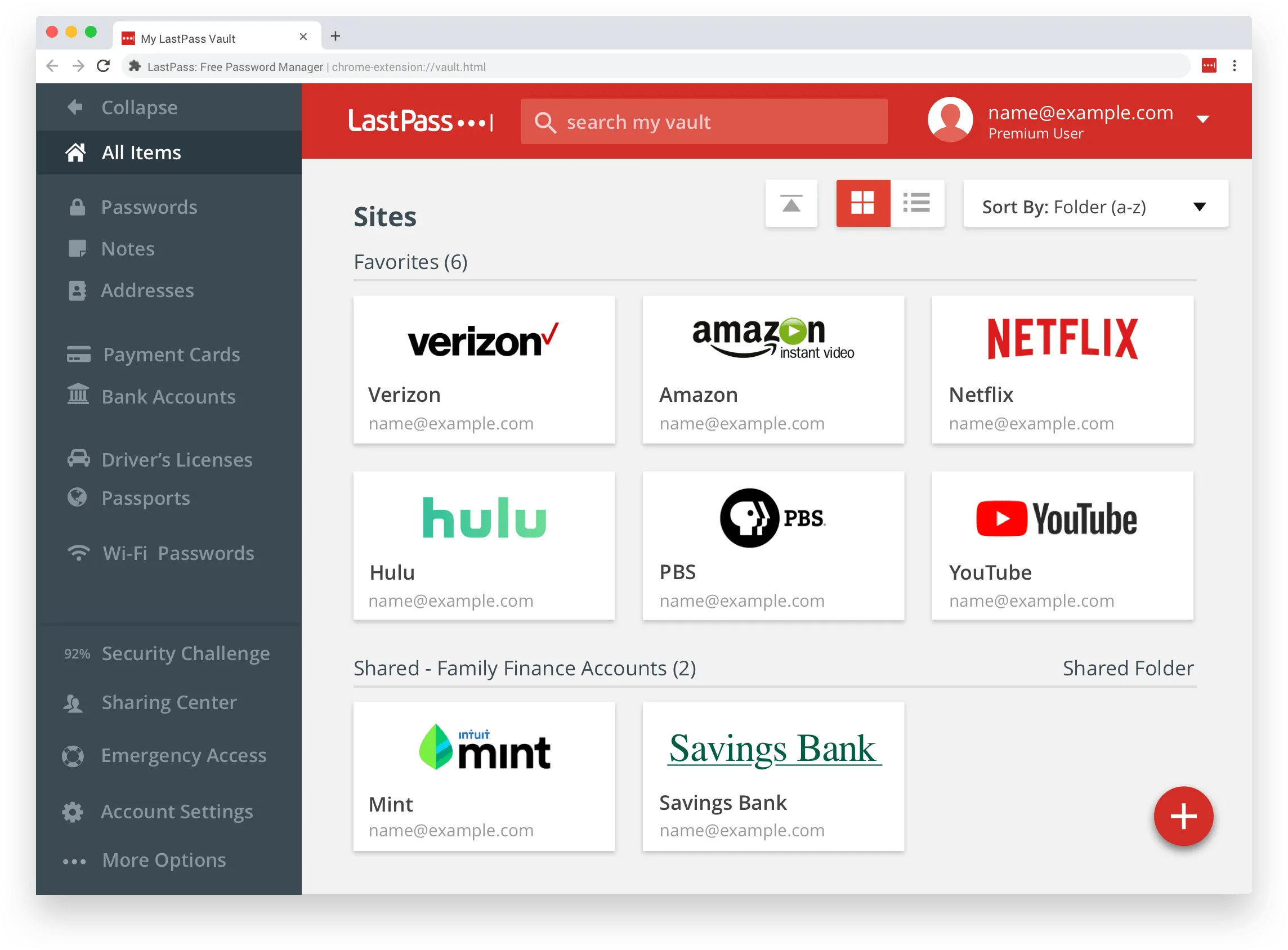
Moreover, just the free plan is enough to meet all your basic needs.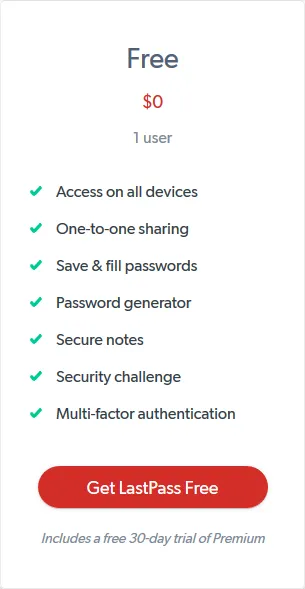
The features mentioned above are self-explanatory. Secure notes are for storing notes, for example, to store your bank account number securely. I had totally no problems with using LastPass except for the fact that in this case too - all my data is stored in some remote server around the world. Hence LastPass too is vulnerable.
LastPass has had many breaches: One in 2015, one in 2017 and one recently in September 2019. Two of these vulnerabilities were identified by Tavis Ormandy a vulnerability researcher at Google ( Google Project Zero).
Here’s his tweet about the latest leak:
https://twitter.com/taviso/status/1173401754257375232
LastPass quickly fixed each vulnerability/breach and here are the reports acknowledging the issues:
2015: https://blog.lastpass.com/2015/06/lastpass-security-notice.html/ 2017: https://blog.lastpass.com/2017/03/important-security-updates-for-our-users.html/ 2019: https://blog.lastpass.com/2019/09/lastpass-bug-reported-resolved.html/
Online password managers are always prone to vulnerabilities. 🤦♂️
https://twitter.com/taviso/status/769378052254015488
So I started looking for alternatives. I wanted a password manager that works locally, has a password generator and has all the essential security features. Tavis recommends KeePass so naturally, I went with that. (Plus it’s open-source)
https://twitter.com/taviso/status/769581755502166017
https://twitter.com/taviso/status/843242496448577536?lang=en
KeePassX stopped development in 2016 so naturally, that’s why I didn’t even give it a try. I used this guide here to make the move from LastPass to KeePass. When you make the move do keep in mind that you are trading usability for security. It’s not like one-click-done, you have to add new entries manually. Sometimes the browser integrations don’t work, hence you’ll have to manually go and copy-paste your password. But all this hassle is totally worth the added security you get. I started generating and using random 15 digit passwords for all my websites. I kept the database locally on my computer. I also kept a backup of the database on a physical USB drive (just in case my PC decides to mess up ). So I only had to remember one single password.
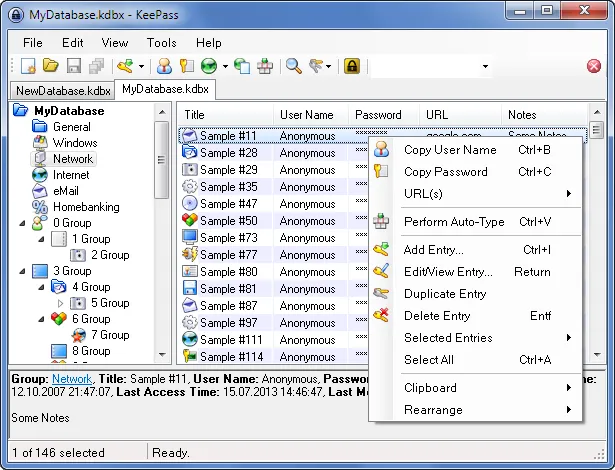
I also stopped signing into my accounts on insecure devices. KeePass had a decent Android app too (It’s a port of KeePass). So one could also store a copy of the encrypted database on an android phone for retrieval on the move.
I used KeePass for a couple of months and when I got to know about KeepassXC I quickly made the switch.
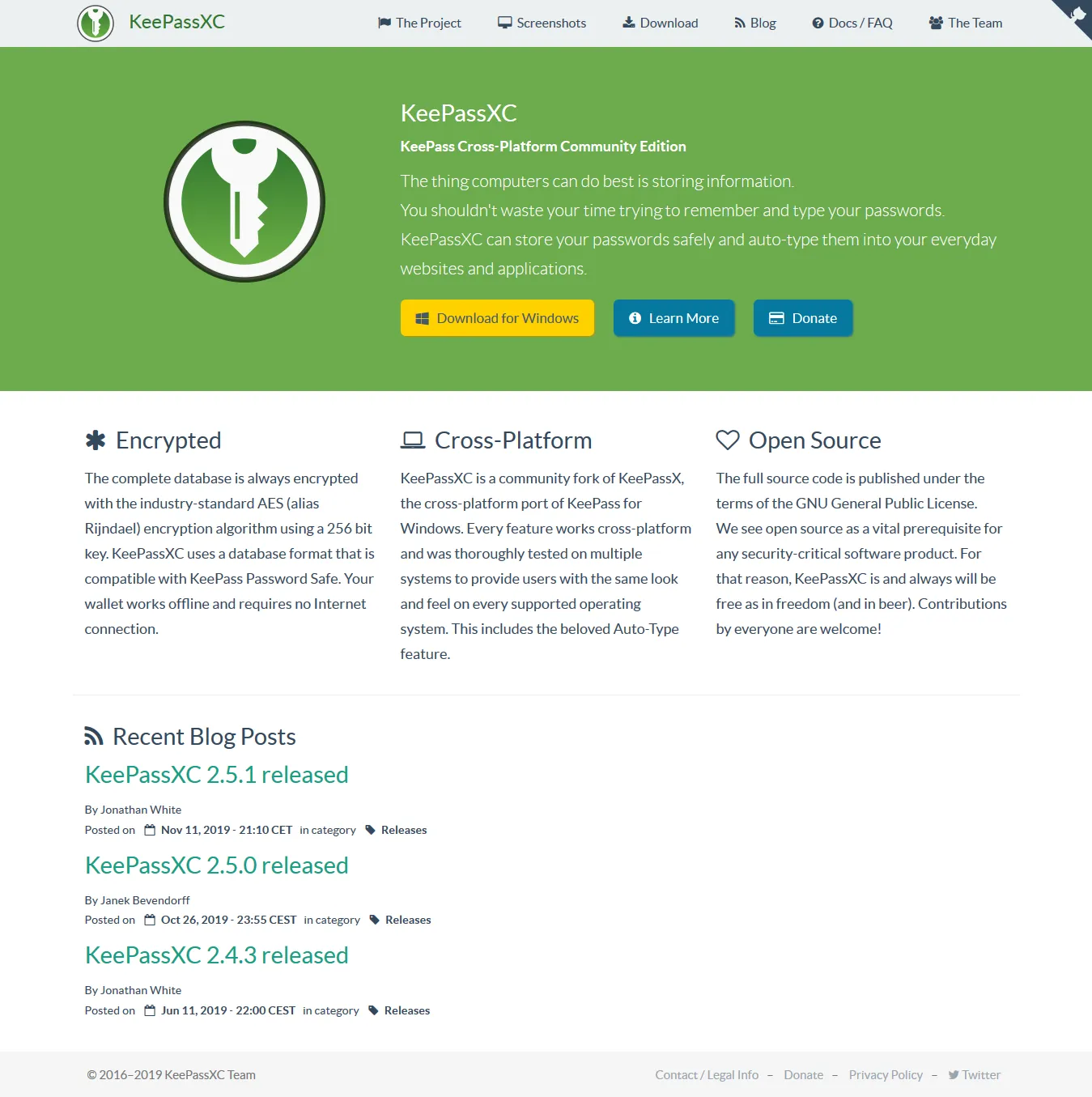
KeepassXC has a very active developer community. Moreover, it works natively on Linux (which came in handy when I had to use Linux for a while) as it’s written in C++, unlike KeePass which is written in C# thus adding the need for Microsoft’s .NET platform. Above all, KeepassXC has a much better-looking interface.
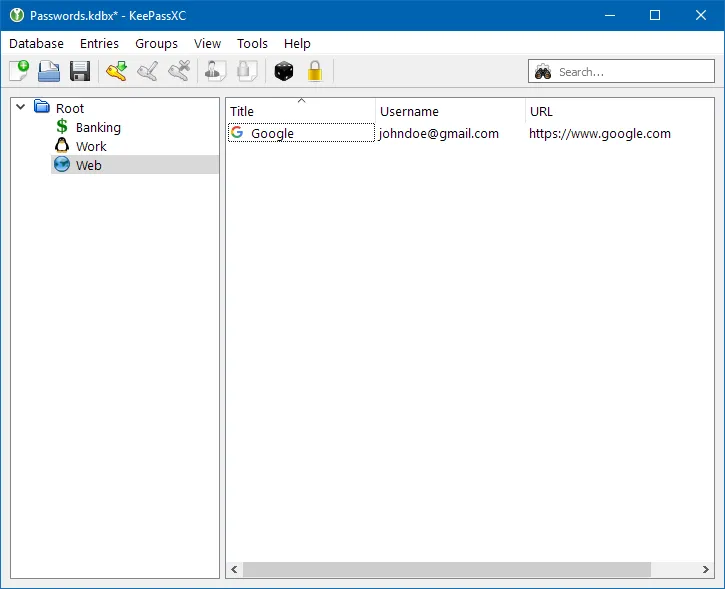
It’s been about a year since I’ve started to use KeePassXC and I’ve had no issues so far. The browser integration wasn’t that great. So I stopped using it. Now, I manually copy paste the required passwords from the app. The added hassle is totally worth it! Now I have close to 600 passwords 😅 safely locked up in my local database.
I guess I’m finally at peace 😌.
But be warned no password or password manager is 100% safe. Perfect security is a myth. There will always be some loophole or the other.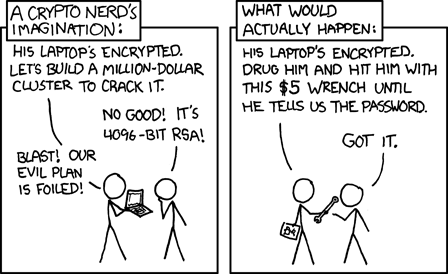
Source: XKCD
Comments